

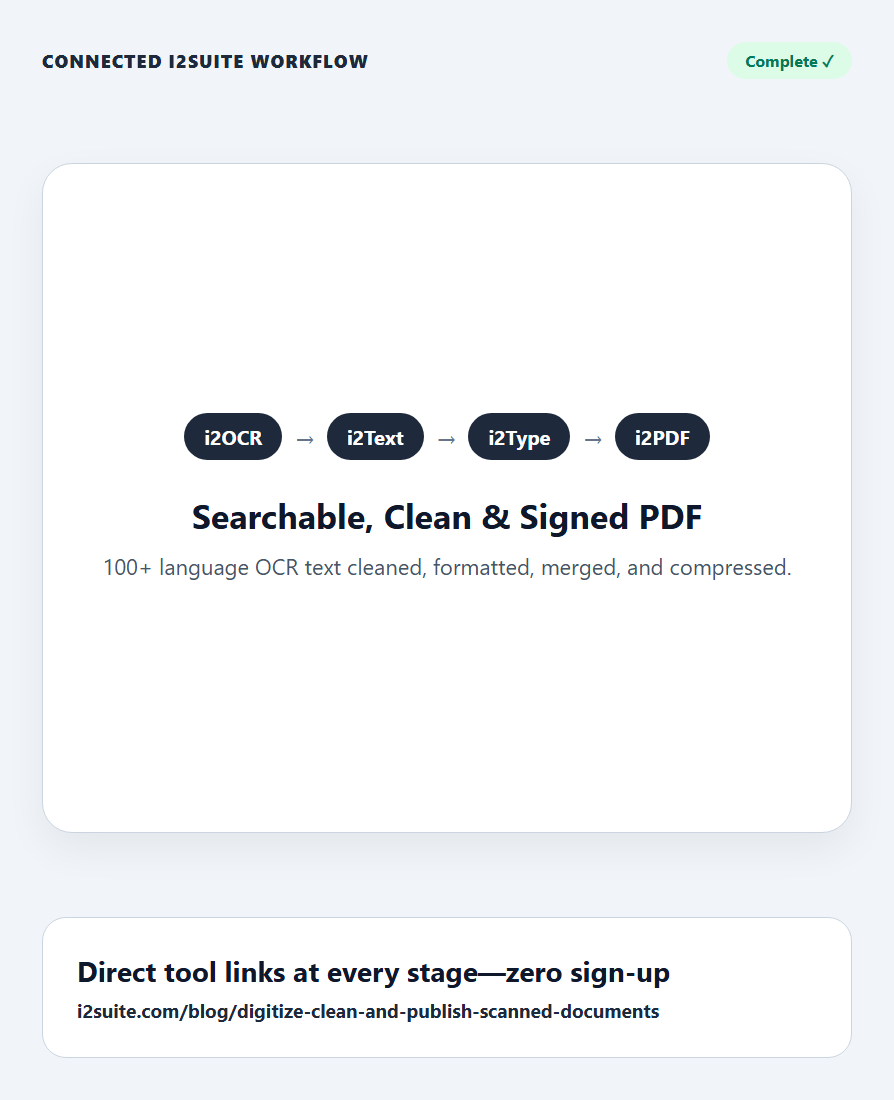
I-extract ang editable text mula sa mga image o scanned PDF sa i2OCR
I-upload ang iyong scanned page o camera photo sa PDF OCR o Image OCR—kabilang ang mga dedicated na PDF Arabic OCR at PDF Japanese OCR.
I-copy ang recognized text o i-download ito nang direkta bilang Word o plain text.
Linisin ang mga maling OCR line break at mag-type ng multilingual passages
I-paste ang extracted text sa i2Text Word Counter para suriin ang structure, alisin ang mga hindi gustong line break, o i-convert nang direkta gamit ang Text to PDF.
Kailangan bang mag-type ng mga correction sa Arabic, Cyrillic, Devanagari, o Zhuyin nang hindi nagse-set up ng OS keyboard? Buksan ang i2Type o ArabicKeyboard.io.
I-assemble, i-crop ang margins, pirmahan, at i-compress ang final PDF sa i2PDF
Dalhin ang iyong mga page sa Edit PDF o Crop PDF sa i2PDF para i-trim ang mga scan border, pagsamahin ang mga appendix, at magdagdag ng mga pirma.
Tapusin sa pamamagitan ng Compress PDF para sa mabilis na pag-email o archival storage.
Common questions
What if a scanned PDF has dark gray photocopy shadows around margins?
Run Crop PDF or Color PDF on i2PDF first to trim dark edges, which also improves OCR accuracy on faint text.
Can I extract tables or multi-column academic pages in i2OCR?
Yes—i2OCR preserves column reading order so multi-column articles do not merge across adjacent columns.
Jump straight into the tools
Turn camera photos or paper scans in 100+ languages into clean, proofread, signed PDF deliverables.